
The Porto Meta element is a flexible component of the Porto Single Builder that displays post metadata such as author name, publish date, categories, comments count, and other post details.
This element allows you to control exactly which meta fields appear on a post, as well as how they are styled and aligned. As a result, you can present post information clearly while maintaining full design consistency across your site.
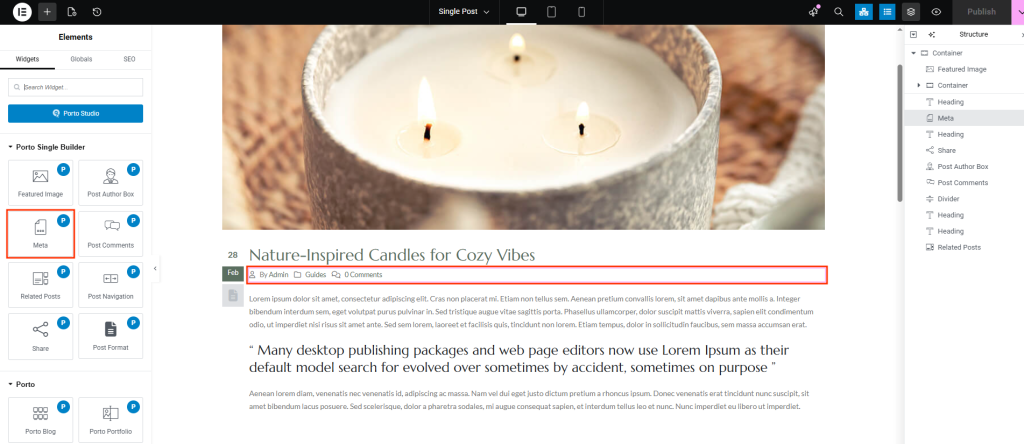
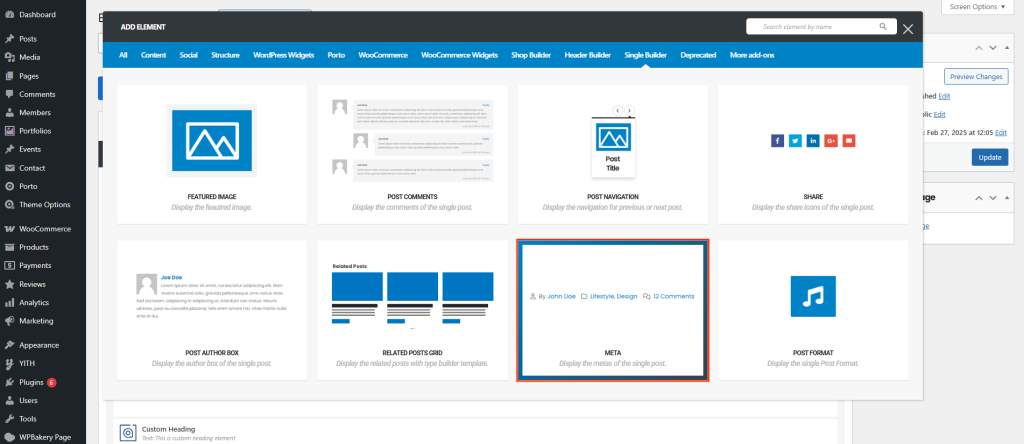
How to Use the Porto Meta Element
-
Open a Single Post Template
First, navigate to Porto → Template Builder → Single Post.
Then, edit your template using Elementor or WPBakery Page Builder. -
Add the Meta Element
Next, locate Meta under Porto Single Builder Elements.
Drag and drop the element into your layout, typically near the post title or author section. -
Select Which Meta Fields to Display
After adding the element, open its settings and use the Show Post Metas option to choose which metadata items should be displayed.
Meta Element Options
The Porto Meta element combines content control and visual styling options in a single widget.
- Content & Display Settings
| Option | Description |
|---|---|
| Show Post Metas | Select which post meta fields to display (author, date, categories, comments, etc.) |
| Hide Icon | Hides the icons shown before each meta item |
| Hide Letter “by” | Removes the word “by” before the author name |
| Align | Sets the alignment of meta items (left, center, or right) |
| Show Divider | Displays a divider between individual meta items |
- Spacing & Layout
| Option | Description |
|---|---|
| Meta Spacing | Controls spacing between meta items |
| Icon Spacing | Adjusts spacing between icons and text |
- Typography & Colors
| Option | Description |
|---|---|
| Typography | Controls font family, size, weight, and style of meta text |
| Color | Sets the default color of meta text and icons |
| Hover Color | Defines the color applied when hovering over meta links |
Notes on Usage
- The Meta element dynamically pulls data from the current post.
- The Show Post Metas option gives full control over which metadata fields appear.
- Icons and text styling can be adjusted independently for clean or detailed layouts.
- The Meta element is designed for use inside Single Post templates.
Additional Tips
- Place the Meta element near the post title for better content hierarchy.
- Disable icons and dividers for minimal or editorial layouts.
- Use hover colors to improve usability and visual feedback.
- Preview the meta layout on mobile devices to ensure proper spacing and alignment.
