
The Porto theme fully supports translation using the Loco Translate plugin, allowing you to translate theme strings, WooCommerce text, and supported plugins directly from the WordPress dashboard—without editing files manually.
This guide explains the recommended workflow for Porto, including best practices to keep translations safe during updates and how to handle dynamic widget text.
Before You Start
Make sure the following requirements are met
- Porto theme is installed and activated
- Loco Translate plugin is installed and activated
- Your site language is correctly set in Settings → General → Site Language
Step 1: Install and Activate Loco Translate
- Go to Plugins → Add New
- Search for Loco Translate
- Install and activate the plugin
Once activated, a new Loco Translate menu appears in the WordPress dashboard.

Step 2: Choose What to Translate
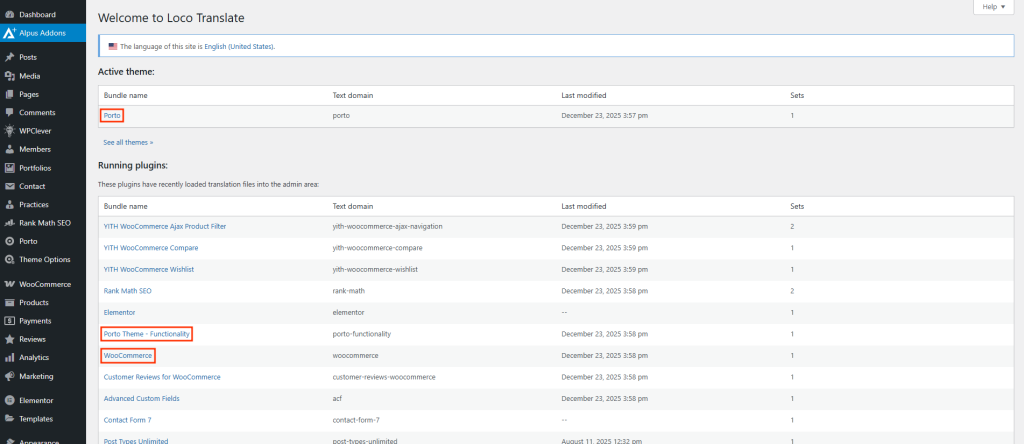
Go to Loco Translate → Home and you will see translation targets such as
- Themes → Porto (theme interface strings)
- Plugins → Porto Functionality
- Plugins → WooCommerce (shop-related text)
- Other plugins used with Porto
Click the component that contains the text you want to translate.
Step 3: Create or Edit a Translation
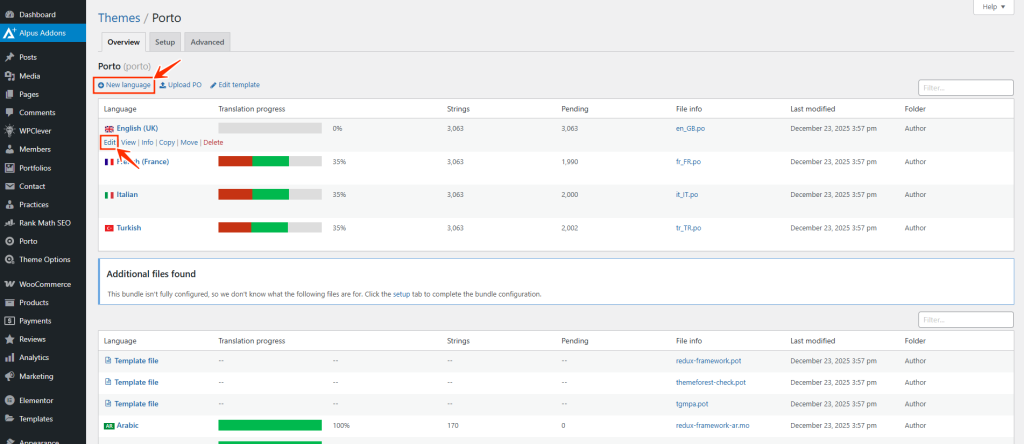
- Click New Language (or select an existing language to edit)
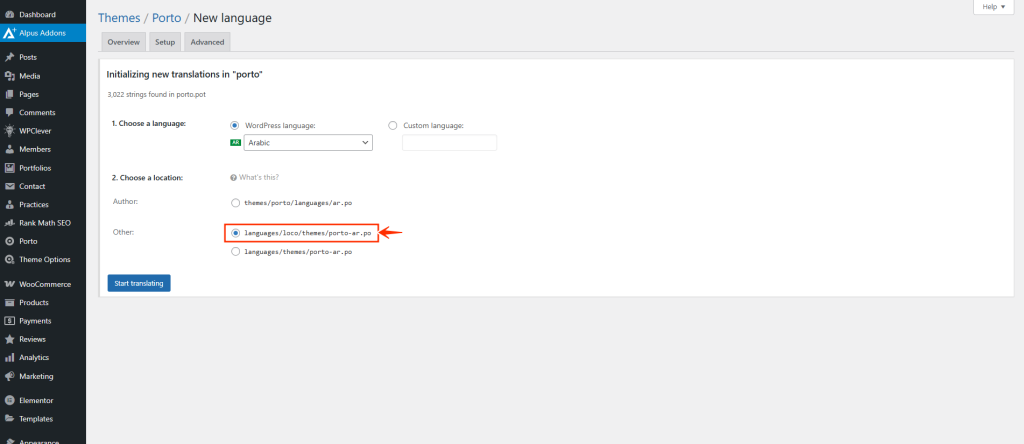
- Choose your target language
- Recommended location: Custom
This prevents translations from being overwritten during theme or plugin updates - Click Start Translating
Step 4: Synchronize Strings (Important)
Before translating—or after any Porto, WooCommerce, or plugin update
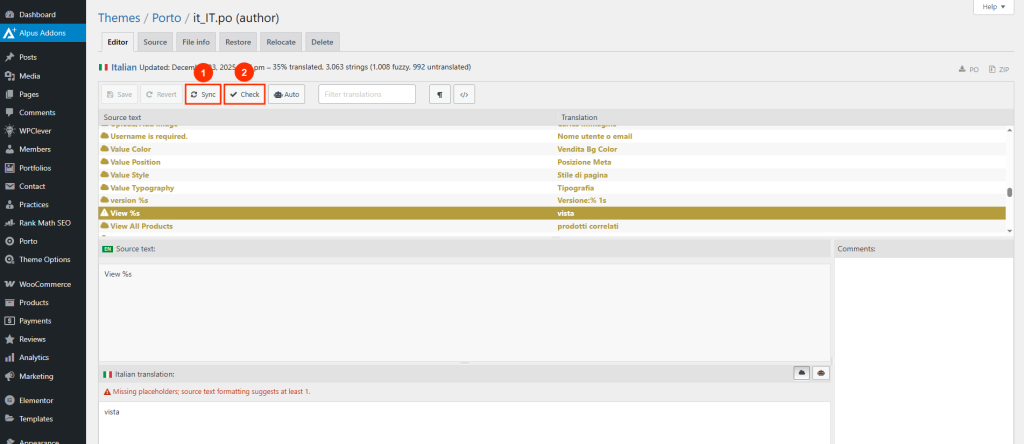
- Click Sync in the Loco Translate editor
- This updates the string list with newly added or changed text
Always synchronize after updates to ensure no strings are missing.
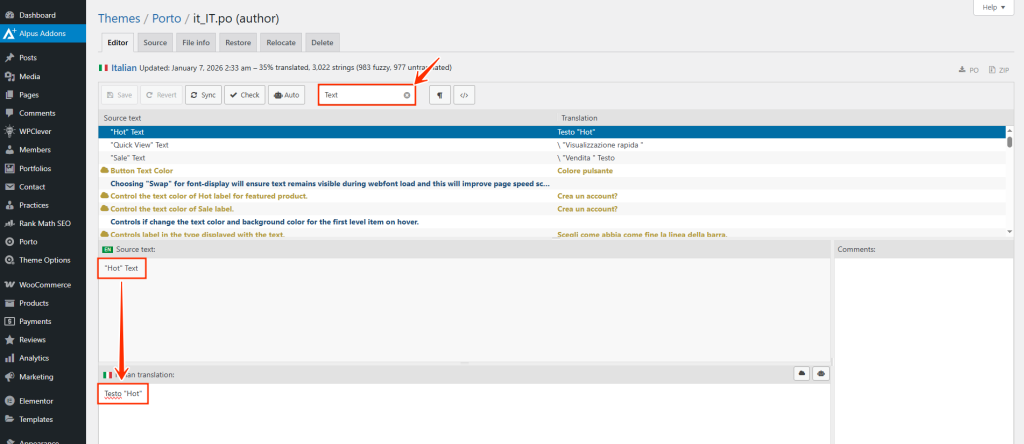
Step 5: Translate Strings
Use the search field to locate the text you want to translate.
- Click a string from the list to select it
- The source language string (commonly English, but not required) appears in the upper panel
- In the lower translation panel, enter your translation for the selected language
- Repeat this process for all required strings
- Click Save to store your translations
Loco Translate automatically updates the
.po
and
.mo
files after saving.
Tip: Translate only strings that are actually used on your site to keep translation files clean and manageable.
Step 6: Clear Cache and Verify
After saving translations:
- Clear your browser cache
- Clear all site caches, including Caching plugins, Server cache, CDN cache (if applicable)
- Refresh the frontend and confirm translations are visible
Common Issues and Solutions
- Translated Text Does Not Appear
Check the following
- Translation was saved in Custom location
- Cache has been fully cleared
- Correct language is active on the site
- String Not Found in Theme, Plugin, or WooCommerce
If the text does not appear in Porto, WooCommerce, or plugin translation files
- The text is likely dynamic content from a widget or builder element
- Open the page, template, or block in Elementor or WPBakery
- Locate the field that contains the text
- Translate it directly in the element settings
Example: Button labels, headings, or descriptions inside Porto elements are often user-defined and are not translatable via Loco Translate.
- Translations Disappear After Update
Cause: Translation was saved in System location
Solution
- Recreate the translation using Custom location
- Synchronize strings again
- Re-save translations
Best Practices for Porto Translations
- Always use Custom location
- Synchronize strings after every update
- Clear all caches after translating
- Translate widget text directly inside builders when needed
- Avoid editing
.po/.mofiles manually via FTP
