
Typography defines the overall tone and readability of your website. Porto provides a powerful typography configuration panel where you can manage global and detailed font settings for your entire site. You can access these settings by navigating to Porto > Theme Options > Skin > Typography
Through this section, you can easily configure the main fonts, custom fonts, and individual font styles for different text elements such as body, headings, and paragraphs.
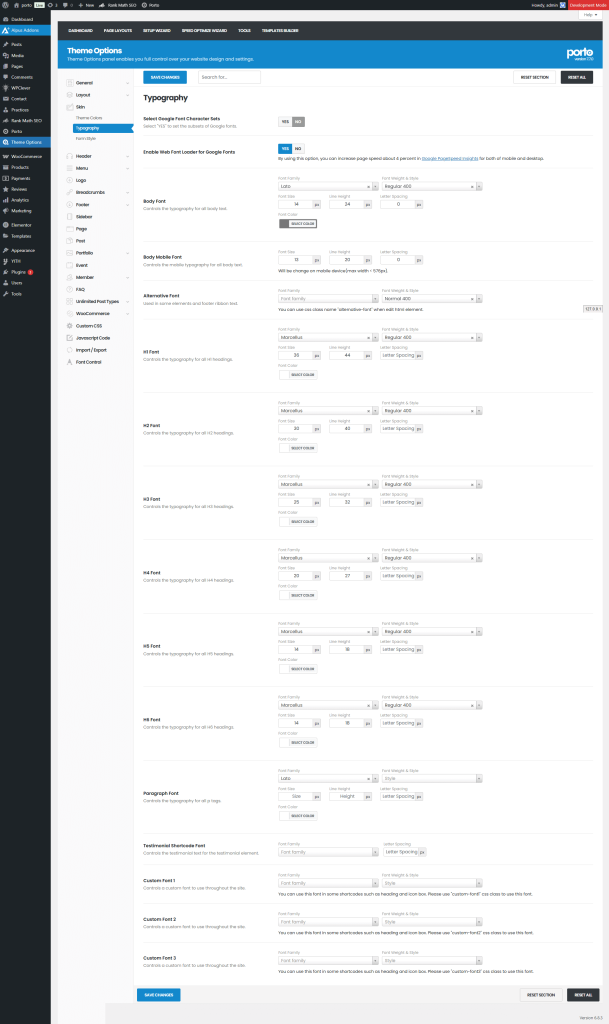
Main Options Overview
Select Google Font Character Sets
Choose the font character sets required for your website. This ensures that all special characters display properly across languages. Common sets include Latin, Latin Extended, Cyrillic, and Greek.
Google Font Character Sets
Manually select additional character sets to load from Google Fonts, based on your language requirements.
Enable Web Font Loader for Google Fonts
Enable this option if you want to load Google Fonts asynchronously using the Web Font Loader. This can improve performance and prevent layout shifts during font loading.
Typography Settings
Body Font
Define the global font style for your website content. You can choose the font family, size, weight, and line height.
This is the main text style applied throughout the site.
Body Mobile Font
Set a separate font configuration optimized for mobile devices. This helps maintain readability and layout consistency on smaller screens.
Alternative Font
Choose a secondary font family that acts as a fallback if your primary Google Font fails to load. This ensures your site remains legible in all conditions.
Heading Fonts (H1–H6)
Customize each heading level (H1 through H6) individually. You can assign a different font, size, weight, and line height for each heading level to create a clear visual hierarchy across your pages.
Paragraph Font
Configure the typography used specifically for paragraph text. This setting helps you control line spacing, font size, and readability for long-form content.
Testimonial Shortcode Font
Set a custom font specifically for testimonial elements. This allows testimonials to have a distinct style that matches your site’s branding or section design.
Custom Font (1–3)
Porto allows you to register up to three additional custom fonts for use throughout your site. In WPBakery, in Porto Typography option, you will be possible to see only font families and font weights registered in above options. Sometimes, you might need to use custom font family in your site and these option make it possible to use additional custom font family.
Additional Tips
- Always configure typography at the beginning of your website setup for consistent styling.
- Use a maximum of two to three font families for better performance and cleaner design.
- Enable Web Font Loader if you notice layout shifts or font flicker issues.
- For multilingual sites, ensure the correct Google Font Character Sets are selected.
