
The Variation Swatch feature in the Porto WordPress Theme allows store owners to display product attributes (such as color, size, style, etc.) as visually appealing swatches instead of traditional dropdowns. Swatches enhance user experience and help customers quickly identify variations through colors, images, or labels.
This documentation explains how to set up attribute display types, configure term-level settings, and connect them to product variations.
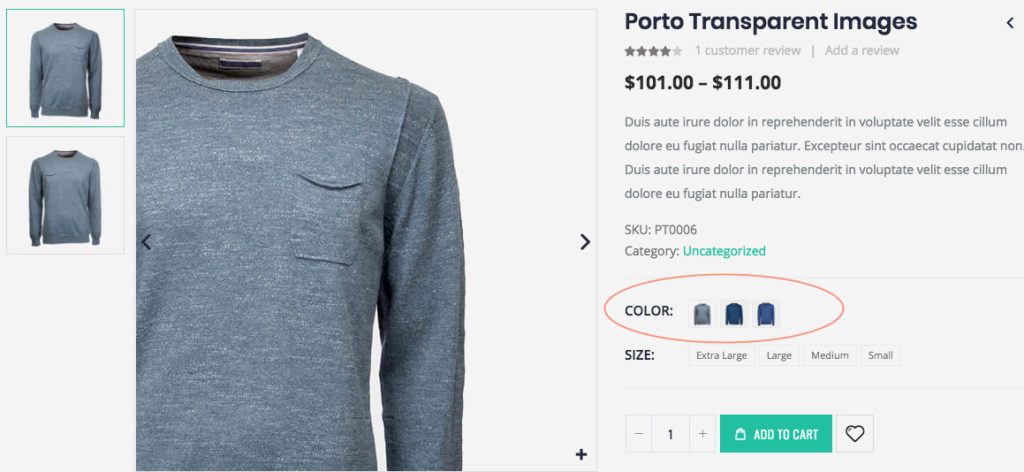
1. Setting Attribute Display Types
Where to Access Attribute Settings
- Navigate to Dashboard → Products → Attributes
- You will see a list of all attributes registered on your site (e.g., Color, Size, Material).
Select a Display Type
- Click Edit on any attribute you want to configure.
- In the attribute settings, locate Display Type.
-
Choose one of the following display types:
- Image – Display variations as thumbnail images
- Color – Display swatches as color boxes
- Label – Display text labels (e.g., S, M, L)
- Select – Keep the default dropdown style
Once saved, the attribute will use your selected swatch type throughout your shop.
2. Configuring Attribute Terms
After setting a display type for an attribute, you must configure each term under that attribute.
Steps
- Go to Dashboard → Products → Attributes → (Select attribute) → Configure terms
- Edit each term individually (e.g., Black, Yellow, Blue, Red).
-
Depending on the selected Display Type, additional fields will appear:
- Image type → Upload an image per term
- Color type → Enter a color code for each term
- Label type → Edit the label text
- Select type → No additional fields
Example:
If the Color attribute is set to Image, each color term can have a dedicated image (e.g., black.png, red.png). These images will appear as swatches on the product page.
Once all terms are configured, they are ready to be used in product variations.
3. Using Attributes as Product Variations
Assign Attributes to a Product
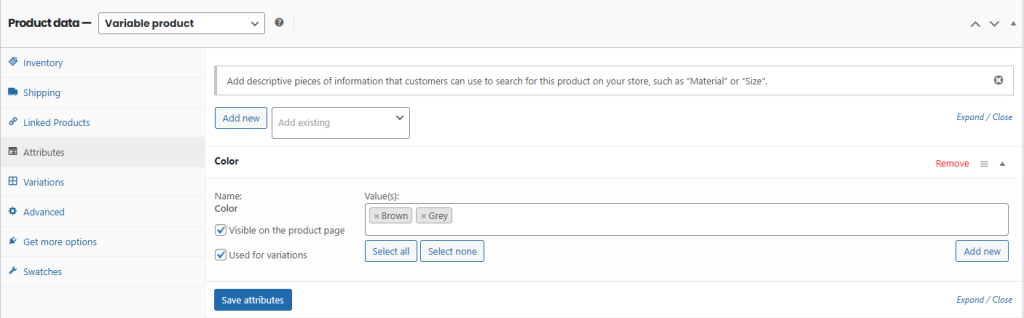
- Edit a product and go to the Attributes tab.
- Add an existing attribute (e.g., Color, Size).
- Select the values (terms) you want to use.
-
Check:
- Used for variations
- Visible on the product page
- Save attributes.
Create Variations
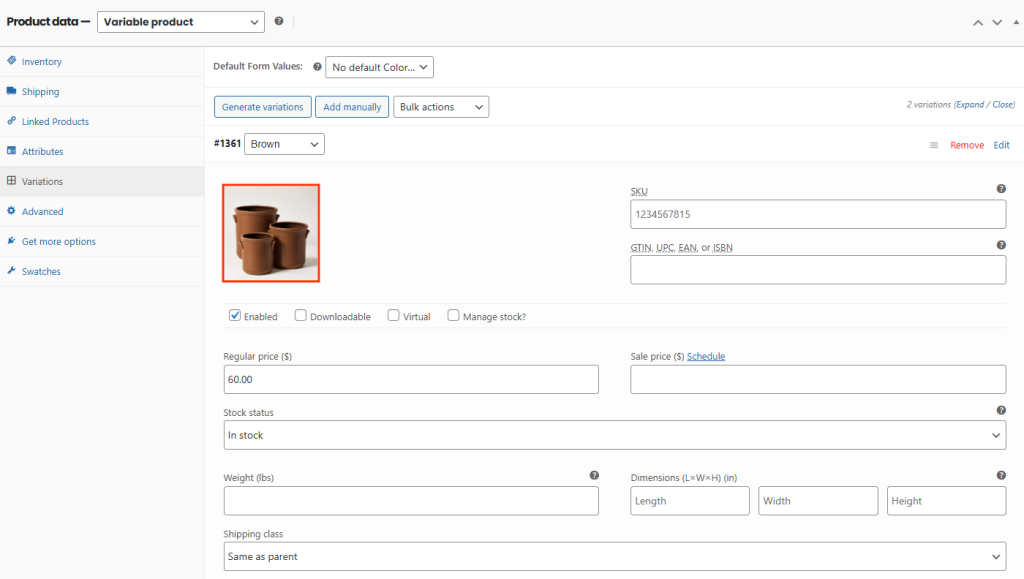
- Go to the Variations tab.
- Add variations from the attributes you assigned.
- Each variation will now inherit the visual style defined under Display Type—image, color, label, or select.
4. Variation Image Behavior
Image Display Type (Special Behavior)
When the attribute display type is Image:
- Each variation can have a unique main image.
- This variation image appears:
- As the thumbnail swatch
- As the product’s featured image when the variation is selected
Override Rule
If you previously added an image inside Products → Attributes → [Attribute] → Edit Term (e.g., Color → Black). Then
- The variation image will override the term image.
- Variation-level images always take priority.
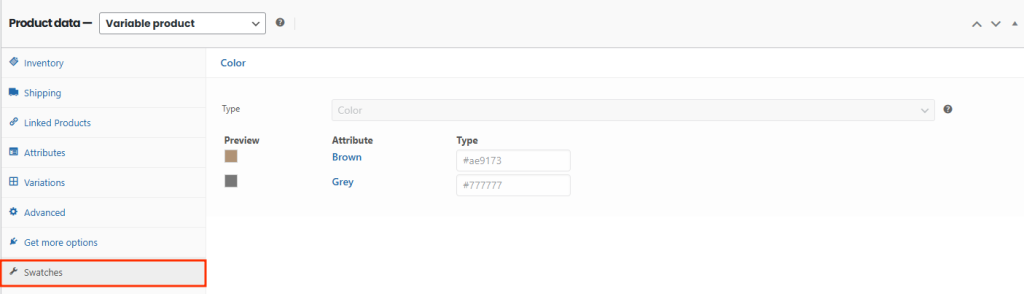
5. Swatches Tab (Additional Options)
On the product edit page, Porto also provides a Swatches tab.
Here, you can:
- Assign swatch images
- Override default term colors
- Customize how swatches appear specifically for this product
This gives you fine control over the visual presentation of your variation selectors.
6. Displaying Variation Swatches on the Front-End
After configuring all swatch-related settings, Porto provides two placement methods: one for single product pages and one for archive pages.
A. Displaying Swatches on the Single Product Page
On single product pages, variation swatches appear inside the Porto Add to Cart element. This element is part of the Product Single Layout built using the Porto Product Single Builder.
To ensure swatches appear:
- Go to Porto → Template builder > Single Product
- Edit the single product layout.
- Make sure the layout includes the Porto Add to Cart element.
- Swatches will automatically appear inside that widget element.
Porto handles the placement automatically—no extra shortcode or manual configuration is required.
B. Displaying Swatches on Product Archive Pages
On product archive pages (shop, category, tag, etc.), swatches are controlled using the Woo Link element in the Porto Post Type Builder.
To display swatches on archives:
- Go to Porto → Template builder > Post Type.
- Edit the block layout used for product archives.
- Locate the Woo Link element.
- In the Content setting, select Image / Color Swatch
By enabling these options, Porto will display the variation swatches directly under the product thumbnail in archive listings.
